
 Arsalan Yasin
Managing doctor schedules is one of the most operationally sensitive tasks a clinic handles. Missed appointments, double-bookings, and gaps in availability do not just frustrate patients; they directly affect revenue and staff morale. More clinics across Australia and globally are turning to open-source ERP Odoo as a structured, scalable alternative to fragmented scheduling tools and manual spreadsheets.
Odoo 19 brings meaningful improvements to its Appointments module, making it a credible option for clinics managing single or multiple practitioners. This article walks functional consultants and business owners through how the platform actually works for doctor scheduling, what to configure, and where the real value lies.
What Is GS1-128 and Why Does It Matter for Odoo Warehouses
GS1-128 is a barcode symbology built on the Code 128 standard, enhanced with a Function Code 1 (FNC1) character that signals the presence of GS1 Application Identifiers within the encoded data. Unlike a simple EAN-13 barcode that only identifies a product, a GS1-128 barcode can carry the Global Trade Item Number (GTIN), lot number, expiration date, quantity, and Serial Shipping Container Code (SSCC) in a single scan. This makes it the preferred standard for warehouse receiving workflows and regulatory supply chain traceability.
Understanding Application Identifiers and Data Encoding
Each data element within a GS1-128 barcode is prefixed by an Application Identifier (AI), a two-to-four-digit code that tells the scanning system what type of information follows. AI (01) denotes the GTIN, AI (10) represents the batch or lot number, AI (17) encodes the expiration date in YYMMDD format, and AI (30) carries the quantity. When Odoo scans a GS1-128 barcode, it parses these identifiers according to its barcode nomenclature rules and automatically populates the corresponding fields on the receipt. This eliminates redundant data entry and ensures consistency between what the supplier shipped and what the warehouse records.
Prerequisites and Configuration in Odoo 19
Enabling the Barcode Module and GS1 Nomenclature
Before processing GS1-128 barcodes, the Barcode module must be active. Navigate to Inventory > Configuration > Settings, scroll to the Barcode section, and enable the Barcode Scanner checkbox. Once saved, a Barcode Nomenclature dropdown appears. Select Default GS1 Nomenclature to instruct Odoo to interpret scanned data using GS1 barcode pattern rules rather than standard EAN/UPC patterns.
Setting Up GTIN, Lot Tracking, and Expiration Dates on Products
Each product intended for GS1-128 receiving must have its 14-digit GTIN entered in the Barcode field on the product form (Inventory > Products > Products). Omit the AI 01 prefix, as Odoo handles that via nomenclature rules. To capture lot number tracking and expiration date encoding from the barcode, enable Lots & Serial Numbers under Inventory > Configuration > Settings > Traceability. For products with shelf life requirements, activate Expiration Date tracking on the product form. Without these settings, Odoo will identify the product but discard the lot and expiration data embedded in the barcode.
How GS1-128 Barcode Receiving Works in Odoo 19
Creating a Purchase Order and Navigating to Receipts
The receiving workflow begins with a confirmed purchase order. Create a request for quotation in the Purchase app, confirm it, and Odoo generates a warehouse receipt (WH/IN). Navigate to the Barcode app to access pending receipts and select the appropriate receipt operation to begin scanning.
Scanning GS1-128 Barcodes During Warehouse Receiving
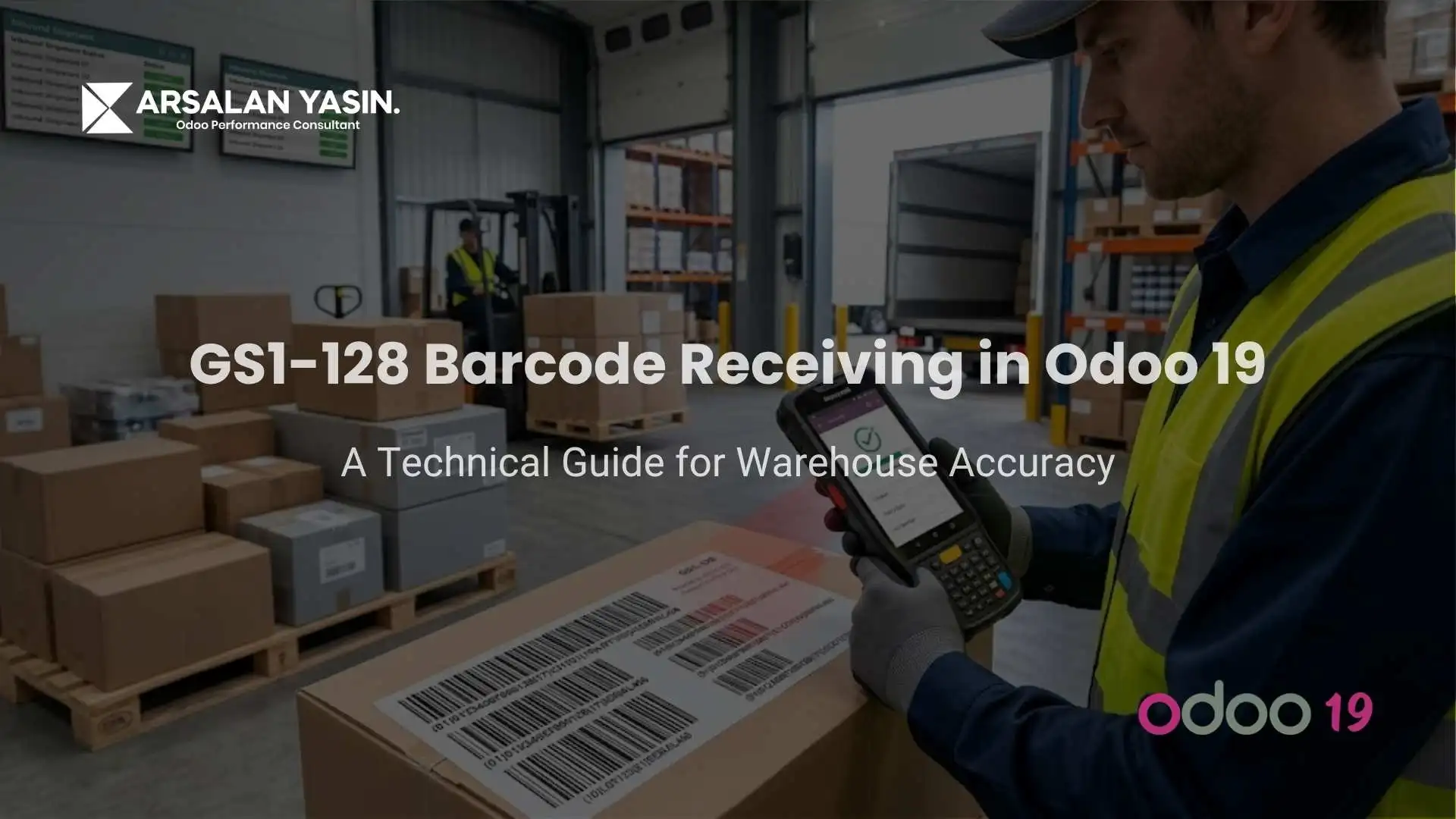
With the receipt open in the Barcode app, scan the GS1-128 barcode on the incoming product or carton. Odoo parses the encoded data in real time: it identifies the product via the GTIN, assigns the lot number from AI (10), records the expiration date from AI (17), and sets the received quantity. The scanned product appears on the receipt line with all fields pre-populated. The Validate button turns green once all expected lines are fulfilled, allowing the operator to complete the stock move validation with a single tap.
Validating Quantities, Lots, and Expiration Data in a Single Scan
The efficiency gain is significant. A single GS1-128 scan replaces manually selecting the product, typing a lot number, entering an expiration date, and keying in the quantity. For operations receiving mixed pallets or high-volume shipments, this reduces receiving time dramatically while improving inventory accuracy.
For a broader perspective on how barcode scanning integrates with routes, putaway rules, and picking workflows, review this detailed guide on warehouse optimization in Odoo 19 with routes and barcode.
Need help applying this to your business?
Customising GS1 Barcode Nomenclature Rules
Adding or Modifying Barcode Pattern Rules in Developer Mode
Odoo ships with a default set of GS1 nomenclature rules, but not every AI pattern is included. If your suppliers encode data using less common Application Identifiers, you will need to add custom barcode pattern rules. Enable Developer Mode, then navigate to Inventory > Configuration > Barcode Nomenclatures > Default GS1 Nomenclature. Each rule defines a name, a type (Unit Product, Lot, Expiration Date, Quantity), and a regex-based barcode pattern. For instance, a rule for serial number assignment using AI (21) would use the pattern (\(21\))([!”%-/0-9:-?A-Z_a-z]{0,20}) with the type set to Lot. DataMatrix barcodes follow the same AI structure and are also supported under GS1 nomenclature.
Verifying Received Stock Through Inventory Reports
After validating a receipt, confirm the data by navigating to Inventory > Reporting > Product Moves. Expand any product line to view stock move lines displaying the receipt reference (e.g., WH/IN/00015), lot number, unit of measure (UoM), and quantity. Cross-referencing this data against the purchase order receipt ensures end-to-end supply chain traceability and provides an audit trail for compliance.
Common Issues and Troubleshooting GS1-128 Scanning in Odoo
Several issues can arise when implementing GS1-128 receiving. The most frequent is a nomenclature mismatch, where the scanner outputs data in a format that does not match Odoo’s configured rules. To diagnose this, scan the barcode into a plain text editor and compare the raw output against the expected AI pattern. Other common problems include missing GTIN entries on product forms, disabled lot tracking, or scanners that strip the FNC1 separator character. Ensure the scanner transmits GS1 data in its complete form, including parenthesised AIs or the equivalent FNC1 control character.
Take the Next Step with Expert Configuration
Implementing GS1-128 barcode receiving correctly requires aligning your scanner hardware, Odoo configuration, supplier label formats, and nomenclature rules. Mistakes at any layer result in failed scans or inaccurate inventory records. If you are planning to deploy or refine GS1-128 receiving in your Odoo 19 warehouse, Book a Consultation to get expert guidance tailored to your specific supply chain and warehouse automation requirements.
Conclusion
GS1-128 barcode receiving in Odoo 19 transforms warehouse intake from a manual, error-prone process into a streamlined, single-scan operation. By properly configuring the GS1 nomenclature, assigning GTINs and lot tracking to products, and aligning scanner hardware with Odoo’s parsing logic, businesses achieve higher inventory accuracy, faster receiving cycles, and reliable product traceability.
You’re here because something matters.
If this decision impacts your operations, your team, or your growth
Let’s talk before it becomes harder to undo.
Frequently Asked Questions
1. Does Odoo 19 support GS1-128 barcodes out of the box?
Yes. Odoo 19 includes a Default GS1 Nomenclature option under Barcode Scanner settings. Once enabled, it parses standard Application Identifiers such as GTIN, lot number, expiration date, and quantity from GS1-128 barcodes.
2. Can I use GS1-128 barcodes with the Odoo mobile Barcode app?
Yes. The Odoo Barcode mobile app supports GS1-128 scanning on Android and iOS. The phone camera or a Bluetooth scanner reads the barcode, and the app processes it using the configured GS1 nomenclature rules.
3. What happens if my supplier's barcode uses an unrecognised Application Identifier?
Odoo will ignore that data segment. You can add a custom rule via Developer Mode under Inventory > Configuration > Barcode Nomenclatures by defining the AI pattern and data type.
4. Do I need to purchase GTINs from GS1 to use this feature?
Yes. Odoo does not generate GTINs. Businesses must purchase a unique GTIN from a GS1 member organisation and enter it into the product’s Barcode field in Odoo.
5. Can GS1-128 receiving capture both lot numbers and serial numbers in one scan?
Yes, provided the barcode encodes both AI (10) for lot and AI (21) for serial number, and the corresponding nomenclature rules are active in Odoo.
Real Stories. Real Results.
See what our clients have to say — in their own words. These video testimonials share genuine experiences from business owners and teams who’ve transformed their operations with Odoo. From smoother workflows to faster decision-making, their stories reflect the real impact of getting the right system and guidance.